Terminals, Shells, and SSH
Connecting to the ENGR servers
There are various ways to interface with a computer. Perhaps the simplest way is thorugh a graphical user interface (GUI). A GUI is what it sounds like—it exposes a graphical interface (clickable icons, buttons, etc) through which to interact with a software system. For example, your desktop environment provides a GUI; you can click on executable files to launch applications, double-click on files and folders to open them, and so on.
But even before the days of GUIs, we had purely text-based interfaces, the classic example being a terminal. A terminal is essentially a text box in which you can type and execute commands to interact with a computer system. As you type in a command and press the enter key, the terminal sends the command to the underlying shell, which interprets the command and executes it. Although terminals and shells predate modern GUIs, they still exist, and they're still extremely useful. They offer very fine-grained, low-level, highly customizable control over the computer system. As one of countless examples, suppose you need to locate all files on a computer system whose name starts with cs-162 and ends with .pdf. Given the skills and know-how, doing this with a terminal and shell is trivial. In contrast, many GUIs (e.g., file explorers) don't offer any way of doing this whatsoever.
Whether you know it or not, you almost certainly have a terminal and shell already installed on your computer. If you're a Windows user, you have PowerShell (and the older Command Prompt, also called cmd; for this course, you should just use PowerShell). If you're a MacOS user, you have the Mac Terminal—just search for "Terminal" in the Mac Spotlight (the magnifying glass search, usually located at the topright of your desktop). If you're a Linux or *BSD user, you likely already know what terminals and shells are, and you've probably already installed your favorite one.
Every terminal looks slightly different, but they all serve the same function. Here's what my terminal looks like:
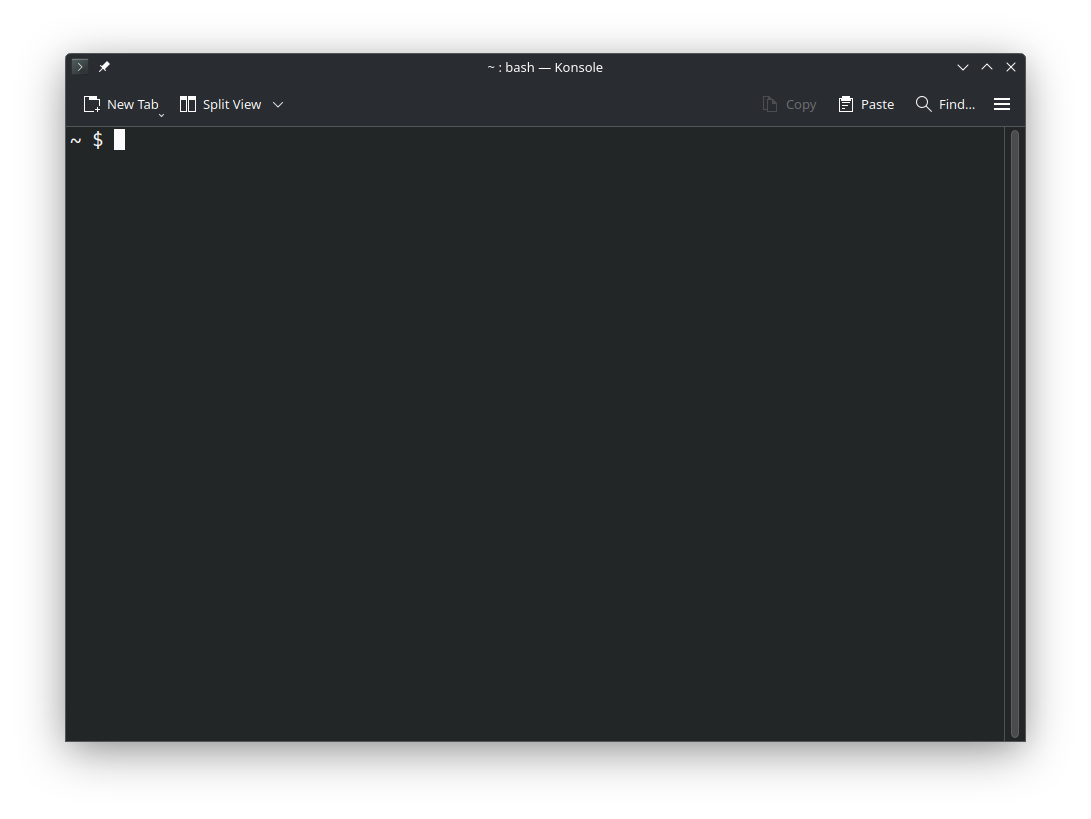
Open your terminal. Most modern terminals offer ways of configuring their settings and color schemes through a graphical menu at the top of the terminal window. The default PowerShell color scheme is white text on a bright blue background; many people don't like that, but it's easy to reconfigure. Also, if you're on Windows and using PowerShell, I strongly suggest that you enable the option that allows you to use Ctrl+Shift+C/V as Copy/Paste. Once you do this, Ctrl+Shift+C will copy the highlighted text in the terminal to the system clipboard, and Ctrl+Shift+V will paste the system clipboard contents into the terminal. Note that in most terminals, Ctrl+C (without Shift) does not copy text to the clipboard, and Ctrl+V (without Shift) does not paste text from the clipboard; they have other purposes.
To execute a shell command, you can simply type it into the terminal and press enter. However, different shells support different commands. For example, PowerShell supports a slightly different set of commands from the *nix Bourne Again Shell (bash, which I'll be using in all of my demos). Luckily for us, there's a way that we can make things consistent for all students: OSU's College of Engineering has their own servers, and it's possible to remotely login to these servers and control their shells within our own terminals. That way, regardless of your operating system and general computing environment, we'll all be able to work with the same shell and the same file system.
Indeed, all of the work that you do for this class will be done within a remote login session on the engineering servers within your terminal. But before you can remotely login to the engineering servers from your terminal, you must create an engineering account via The Engineering Accounts and Classes Homepage (TEACH). If you don't already have an account, create one. Then login.
Since you're logged into TEACH, now would be a good time to configure your engineering account. The engineering servers are Linux systems, and they have various Linux shells installed and available for use. In particular, when you remotely login to the engineering servers in your terminal, it will default to a certain installed shell. You can configure which shell is used by default through your TEACH account settings. On the right side of the TEACH webpage, under the "Account Tools" section, click "Change Unix Shell". Under the dropdown menu, select "/bin/bash" and click "Submit". I also use Bash, so this will ensure that your shell works in the exact same way as mine does in my lecture demonstrations.
Now open your terminal again. The protocol that we're going to use to remotely login to the engineering servers is SSH, which stands for Secure Shell. Execute the following shell command, but replace guyera with your ONID:
ssh guyera@access.engr.oregonstate.edu

It may ask if you'd like to trust the connected host. Type Y for yes and press enter. It will then ask for your password. Type in your ONID password and press enter. It will be invisible as you type it. This is an intended security feature. If it asks you for your password again (or kicks you out), then that usually either means a) you typed your password incorrectly, or b) you haven't yet created an engineering account on OSU TEACH. Finally, it will ask you to select a Duo device to authenticate your login. Type in the number associated with your desired Duo device and press enter, then complete the Duo authentication on your device.
If all goes well, a message similar to the following should be displayed in your terminal:
========================================================================
 You Are Accessing an Oregon State University System
 Unauthorized Access Prohibited
 Use Constitutes a Consent to Monitoring
 Users have No Expectation of Privacy
========================================================================

========================================================================

Beginning Friday 12 July 2019 at 500pm, two-factor Duo authentication
will be required on the following College of Engineering linux SSH servers:

    access.engr.oregonstate.edu
    flip.engr.oregonstate.edu
    nome.eecs.oregonstate.edu

Students can sign up for two-factor Duo at:
    https://beav.es/duo

------------------------------------------------------------------------
If you have any problems with this machine, please mail support@engr.orst.edu
========================================================================

Last login: Wed Jul 16 11:57:34 2025 from 10.248.115.72
(base) guyera@flip2:~$
Congratulations! You're now logged into your account on the engineering servers. Until you exit out of your terminal (or kill the SSH session via the exit shell command), any and all shell commands that you execute in the terminal will actually be sent to the engineering servers, interpreted by a shell running remotely on the servers (specifically, the default shell that you configured via the interface in TEACH (hopefully /bin/bash) and executed on the servers on your behalf. In essence, you're now able to control the engineering servers remotely via a text-based terminal interface.
See my lecture notes on basic Bash commands to learn how to navigate your engineering file space within the terminal.
Bypassing Duo with SSH keys (method 1)
Having to authenticate your SSH logins with Duo can be annoying. Luckily, there's an alternative authentication method that, if enabled, allows you to bypass the Duo authentication step. This alternative method is to configure SSH keys to authenticate your laptop with the ENGR servers.
(If you've generated SSH keys on your computer in the past, then you can skip this step) First, open a new terminal window and execute the below command (do not use the ssh command to connect to the ENGR servers before doing this; this should be executed directly on your computer rather than the servers):
ssh-keygen -t ed25519Follow the on-screen instructions. When it asks you to enter a passphrase, make sure to choose something that you'll remember; you'll need to enter this passphrase (instead of your ONID password) whenever you connect to the engineering servers over SSH. When it asks you where you'd like to save the SSH key files to, simply press enter (without typing anything) to save them to the default location. Note: if you save them to a nondefault location, you'll have to create an SSH config file to tell your SSH agent where to find them. Unless you're an experienced SSH user, it's strongly recommended that you simply save them to the default location for now.
Your computer now has a pair of SSH key files stored in a certain location (the location depends on your operating system, but it's typically in a folder called .ssh, which is inside your user home folder). An SSH key pair consists of two files: a private key, and a public key. The private key produces signatures, and the public key verifies signatures produced by the private key. In your case, your computer will use the private key to state its identity when logging into the engineering servers, and the engineering servers will use the public key to verify that identity (i.e., to verify that the computing logging in indeed belongs to you, authenticating the login). In order for this all to work, the engineering servers need a copy of the public key, but it's currently only stored on your computer (you just generated it a moment ago). There are a couple of ways to copy the public key file into the required location on the engineering servers, but on many computers, the simplest way is to execute the below command in your terminal, replacing guyera with your own ONID (again, make sure you're not connected to the ENGR servers over SSH in this terminal when executing the below command):
ssh-copy-id guyera@access.engr.oregonstate.eduThis command doesn't work on some Windows systems. If it doesn't work, skip down to the next section. But if it works, it will likely ask you for a password. Type in your OSU ONID password again (the password that you use to login to Canvas and other OSU services—not the SSH key passphrase that you chose in the previous step) and press enter. Your password will be invisible as you type it. Complete the Duo authentication step as before. If all goes well, a confirmation message should be displayed stating that the key was copied successfully. It may look different on different systems, but this is what it looks like on mine:
/usr/bin/ssh-copy-id: INFO: Source of key(s) to be installed: "/home/alex/.ssh/id_ed25519.pub"
/usr/bin/ssh-copy-id: INFO: attempting to log in with the new key(s), to filter out any that are already installed
/usr/bin/ssh-copy-id: INFO: 1 key(s) remain to be installed -- if you are prompted now it is to install the new keys
========================================================================
 You Are Accessing an Oregon State University System
 Unauthorized Access Prohibited
 Use Constitutes a Consent to Monitoring
 Users have No Expectation of Privacy
========================================================================


Number of key(s) added: 1

Now try logging into the machine, with: "ssh 'guyera@access.engr.oregonstate.edu'"
and check to make sure that only the key(s) you wanted were added.
You should now be able to log into the engineering severs remotely via SSH without being asked to complete a Duo authentication. However, when you attempt to login via SSH from this point forward, you will need to enter your SSH key passphrase (the one you chose when generating your SSH keys a moment ago) instead of your ONID password.
If you're still asked for your ONID password / a Duo authentication when connecting to the ENGR servers over SSH, then something went wrong in the above steps when configuring your SSH keys. Don't hesitate to stop by office hours for help. (You might also try method 2 below, but it's more complicated and is mostly reserved for Windows systems that don't have the ssh-copy-id command available).
Bypassing Duo with SSH keys (method 2)
The ssh-copy-id command isn't available on some Windows computers. If you're in that situation, you can still configure SSH keys manually. You'll still need to generate SSH keys for this method, so if you haven't already done so, follow the beginning steps of method 1 above to generate your keys (i.e., run the ssh-keygen command as directed in the previous section).
You'll then need to locate the SSH key files that were generated on your computer. They're usually in a folder named .ssh, which is in turn inside your home folder (e.g., C:\users\YOUR_USERNAME\.ssh). When you find that folder (e.g., in your Windows file explorer), there should be at least two files in it: id_ed25519, and id_ed25519.pub. The former is the private key, and the latter is the public key. Open the public key file in notepad (notepad is a basic text editor, and it comes standard with Windows). The public key file might look something like this:
ssh-ed25519 AAAAC3NzaC1lZDI1NTE5AAAAIH3Gehnsd4nsM6+BUDZUQGyEpqPlBKPFQLbismswI8+u alex@alex-laptop
Copy its entire contents to your system clipboard (highlight it and press Ctrl+C in notepad).
Use ssh in a terminal to connect to the ENGR servers, as explained in the first section of this lecture. Once connected, execute the following command in the SSH session on the ENGR servers:
mkdir -p ~/.sshThis will create a .ssh directory within your ENGR user home directory if one doesn't already exist.
Next, configure its permissions like so:
chmod 700 ~/.sshCreate an authorized_keys file if one doesn't already exist like so:
touch ~/.ssh/authorized_keysNext, configure its permissions like so:
chmod 600 ~/.ssh/authorized_keysFinally, execute the following command, replacing SSH_KEY_HERE with the public SSH key contents that you copied to your system clipboard a moment ago:
echo "SSH_KEY_HERE" >> ~/.ssh/authorized_keysIf all goes well, you should now be able to log into the engineering severs remotely via SSH without being asked to complete a Duo authentication. However, when you attempt to login via SSH from this point forward, you will need to enter your SSH key passphrase (the one you chose when generating your SSH keys a moment ago) instead of your ONID password.
If you're still asked for your ONID password / a Duo authentication when connecting to the ENGR servers over SSH, then something went wrong in the above steps when configuring your SSH keys. Don't hesitate to stop by office hours for help.